Xray config
XrayCDN tests IPs through your xray setup. Add a JSON template that matches the config you already use.
Before you start
Section titled “Before you start”- Finish License activation.
- Have a working xray/VLESS (or compatible) JSON ready.
Open Xray configs
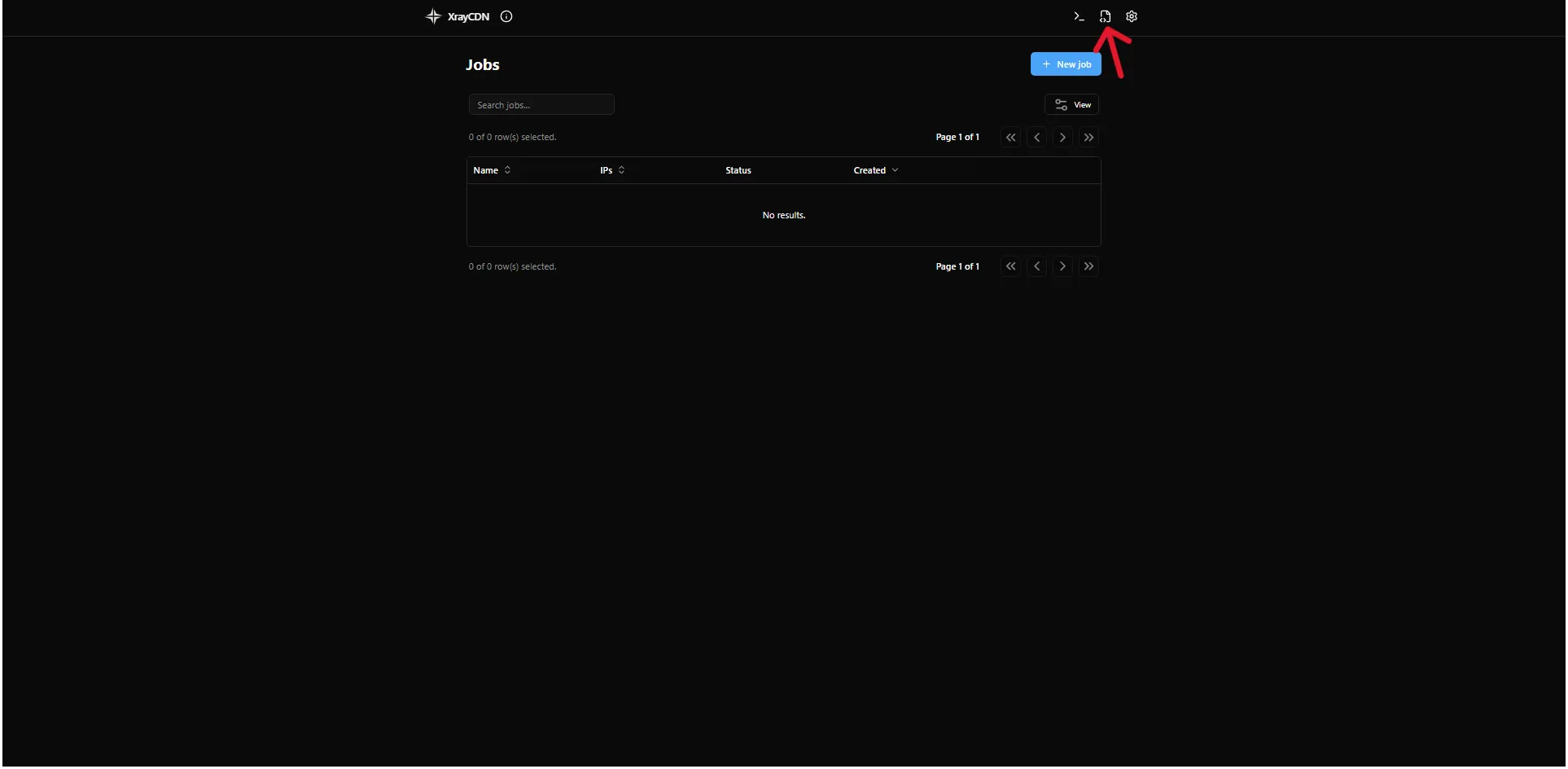
Section titled “Open Xray configs”- On the main screen, click Xray configs in the top-right header.
- Select an existing template in the list, or click + New to start from the built-in example and edit it.
Paste and adapt your JSON
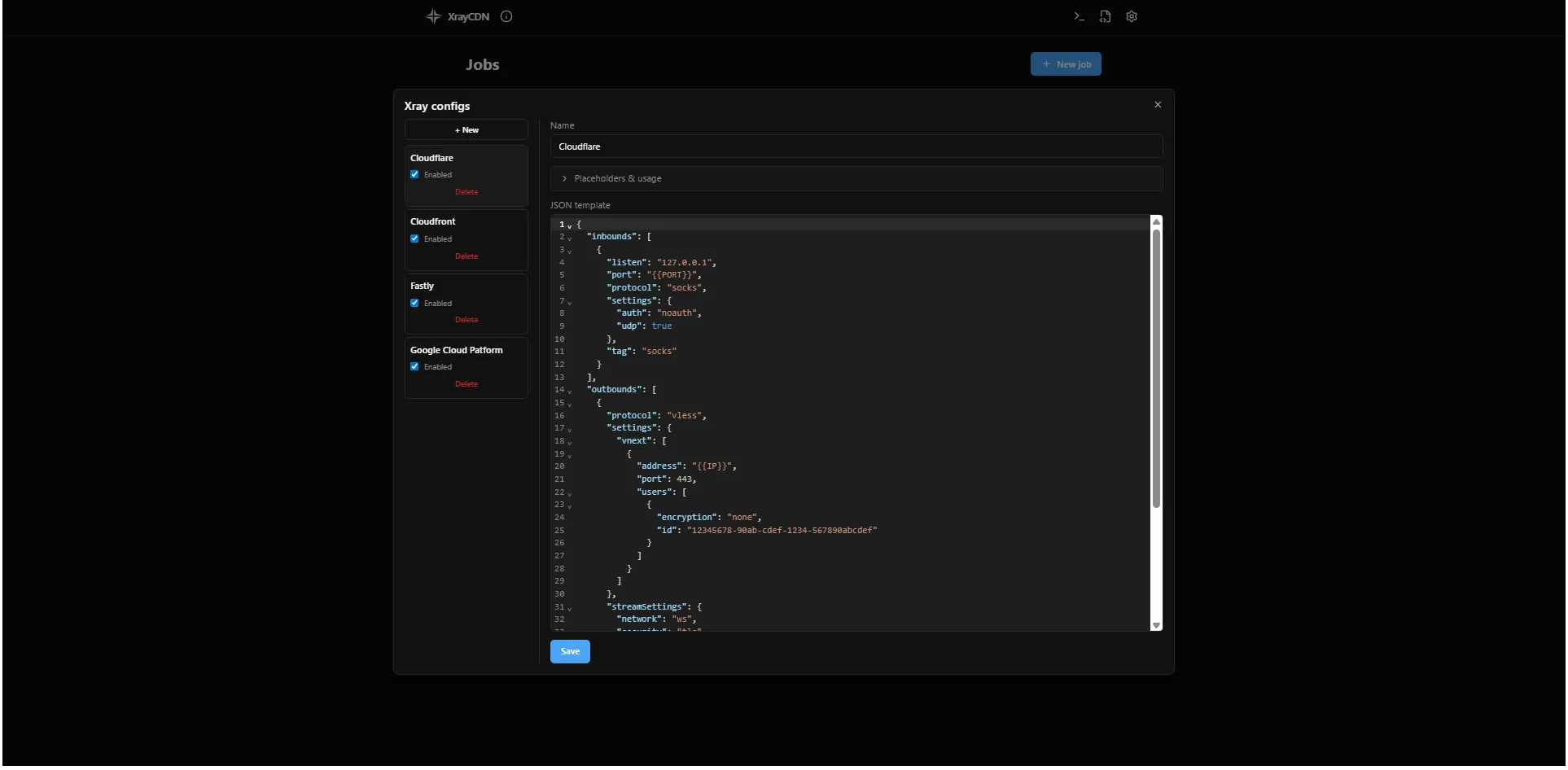
Section titled “Paste and adapt your JSON”- Copy your JSON into the JSON template editor (or edit the + New example).
- Set your real values for domain, UUID, WebSocket path, TLS settings, and any other fields - same as in your working config.
- Where the CDN edge address belongs, use the placeholder
{{IP}}(not a fixed IP). During each Xray test or Speed test, the app replaces it with the CDN IP being tested. - Keep the placeholder
{{PORT}}where the template expects the local SOCKS inbound port. Do not type your own port number - the app assigns a free local port and replaces it when the test runs. - Edit Name if you want a clearer label in the list.
- Click Save.
The template must be valid JSON and must contain both {{IP}} and {{PORT}} or the app will show an error.
Enabled profiles
Section titled “Enabled profiles”Turn Enabled on for templates you want to use in tests. Turn it off to keep a draft without using it.
Recommended: enable only one profile while you benchmark IPs, so every test uses the same proxy settings.
Multiple enabled profiles also work: for each IP in a Xray test or Speed test run, the app picks one enabled template at random. Different IPs in the same run may use different templates. Use this only if you intentionally want to rotate between several configs.
If every profile is disabled, xray and speed tests cannot start - enable at least one and Save.
Troubleshooting
Section titled “Troubleshooting”“Template must contain …” (missing placeholders)
Section titled ““Template must contain …” (missing placeholders)”Add both {{IP}} and {{PORT}} to the JSON (see the screenshots). Save again.
“Invalid JSON”
Section titled ““Invalid JSON””Check commas, quotes, and brackets. Paste through a JSON validator if needed.
“No enabled xray config”
Section titled ““No enabled xray config””Enable at least one profile (Enabled checkbox) and click Save.
Still stuck?
Section titled “Still stuck?”Contact support through xraycdn.app.
Next step
Section titled “Next step”Create a job and import IPs, then run Ping.