License activation
You need an active license before using the app.
Before you start
Section titled “Before you start”- Purchase a license if you have not already.
- After purchase, support sends your license ID (same way you receive the app download link).
- Install the app and run XrayCDN.exe.
- Turn on your VPN and enable TUN mode (system tunnel / full tunnel). Keep VPN connected during activation and later online checks.
First-time activation
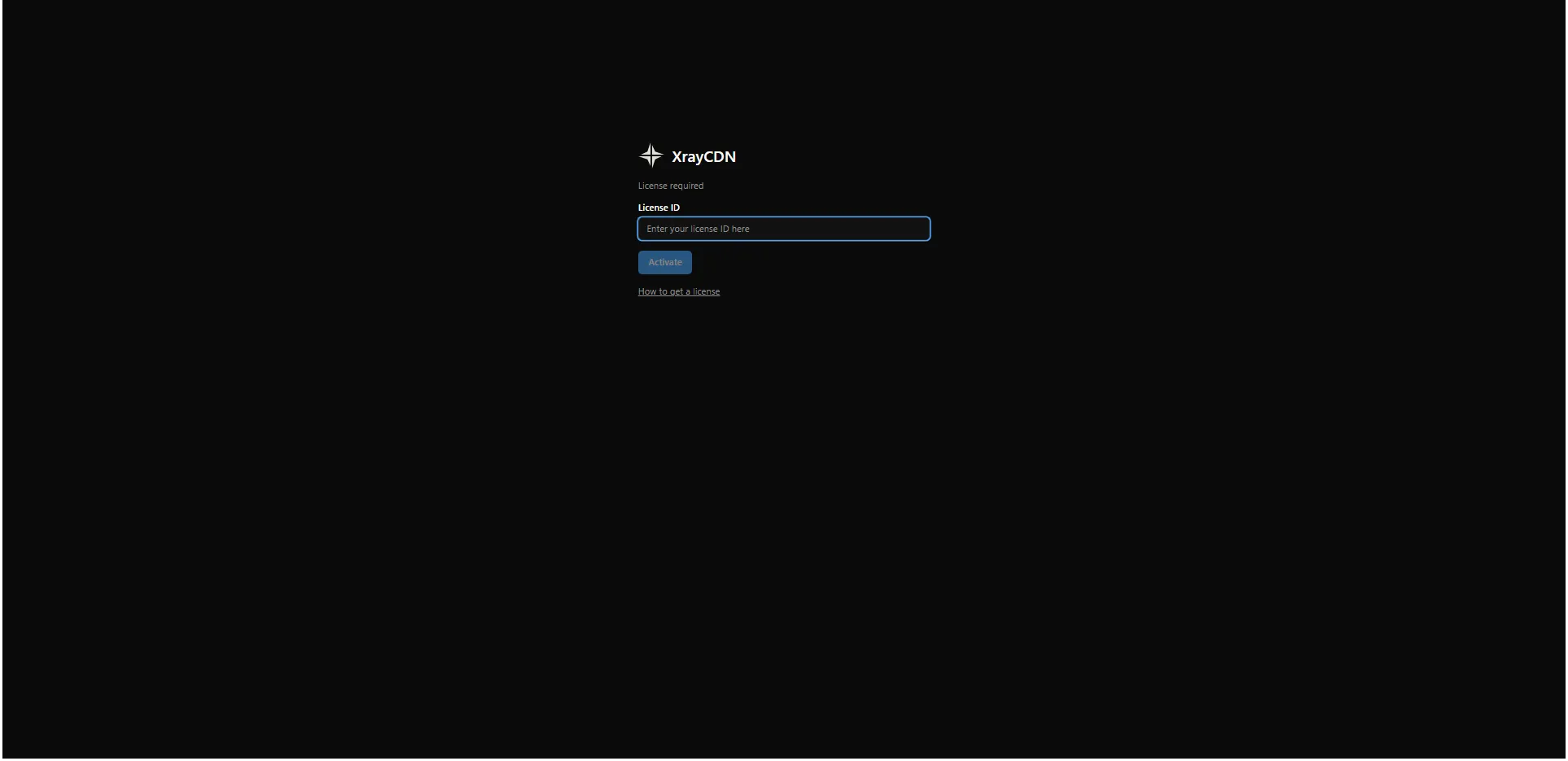
Section titled “First-time activation”- On the license screen, paste your license ID into the field (label: License ID).
- Confirm VPN is connected and TUN mode is enabled.
- Click Activate.
- When activation succeeds, the app opens the main screen (jobs). Continue with Xray config.
Troubleshooting
Section titled “Troubleshooting”“License validation failed” or activation errors
Section titled ““License validation failed” or activation errors”The app could not complete activation.
- Enable VPN with TUN mode.
- Wait until the VPN shows as connected, then try Activate or Validate license again.
- If it still fails, try another VPN location or profile, then retry.
Wrong or unknown license ID
Section titled “Wrong or unknown license ID”- Copy the license ID from support again (no extra spaces).
- Paste into License ID and click Activate.
“License already bound to another machine”
Section titled ““License already bound to another machine””Each license works on one PC. You cannot move it by yourself.
- Use the PC that was activated first, or contact support if you replaced your computer.
“License expired” or “License revoked”
Section titled ““License expired” or “License revoked””Your term ended or the license was disabled.
- Contact support via xraycdn.app to renew or get a new license.
“License not found”
Section titled ““License not found””The license ID may be incorrect.
- Check the ID with support and try again.
Still stuck?
Section titled “Still stuck?”If you have questions or still cannot activate your license after trying the steps above, contact support through xraycdn.app.
Next step
Section titled “Next step”Configure xray templates before importing IPs and running tests.